Setting Up Video Calls for Grandparents
Disclosure: This page contains affiliate links. If you buy through them we may earn a commission at no extra cost to you. As an Amazon Associate I earn from qualifying purchases. Details.
Video calls work best for grandparents when they have one device, one app, one place it lives, and one person to call for help. Most frustration comes from small things: a call they can't find the button to answer, a password prompt, or a screen that went to sleep. This guide removes those.

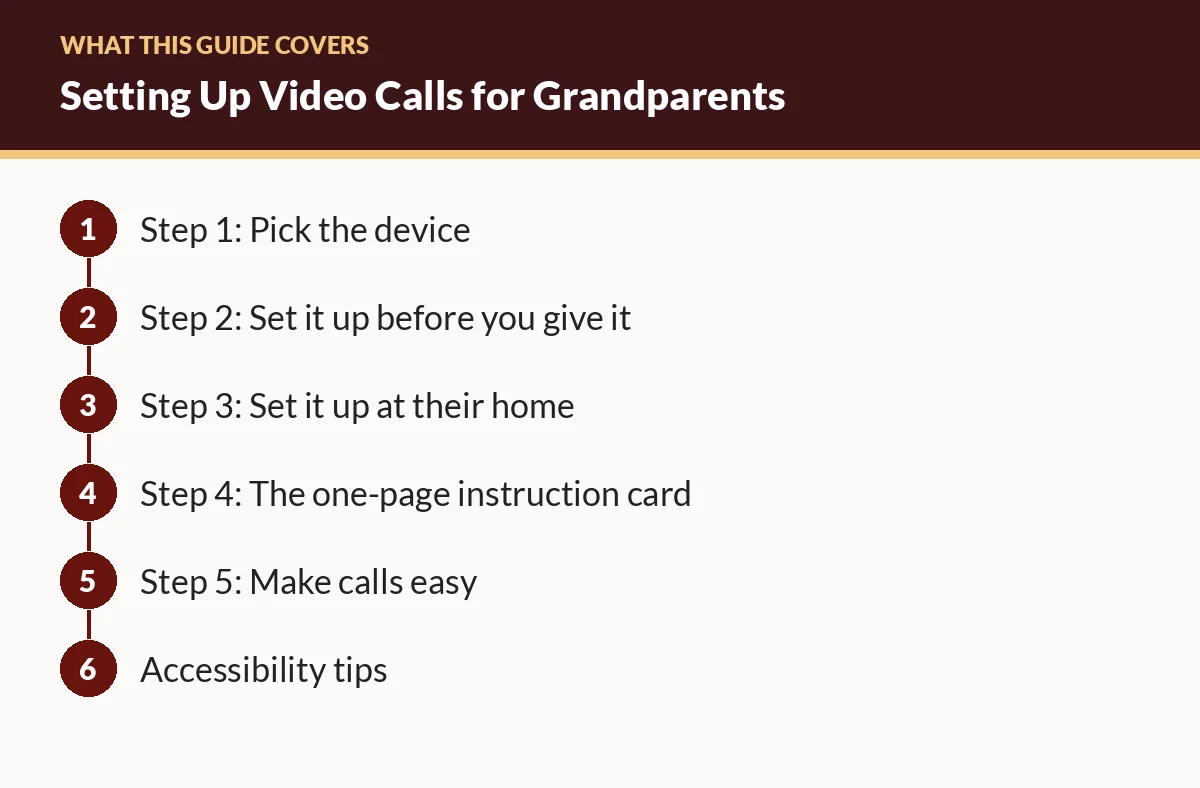
Step 1: Pick the device
| Device | Pros | Cons |
|---|---|---|
| Tablet on a stand | Big screen; familiar apps; portable | Needs charging; more menus |
| Smart display | Sits in one place, always plugged in; voice control | Fewer apps; tied to one ecosystem |
| Smartphone | They may already have one; always with them | Small screen; holding it is tiring |
| Laptop | Big screen, good camera | Most steps; easiest to get lost in |
Our framework: choose the device that matches what the rest of the family already uses. If everyone's on one calling app, pick a device that runs it well.
Tablet stands → Amazon · Smart displays → Amazon
Step 2: Set it up before you give it
- Charge and update the device.
- Create or sign in to the account. Write the password on a card for their important-papers folder.
- Install one calling app. Remove or hide others to avoid confusion.
- Add contacts with photos so they can tap a face.
- Turn on large text, maximum volume, and captions if available.
- Test calls from several family members' phones. Make sure ringing is loud and obvious.
- Adjust auto-lock and sleep so the screen doesn't go dark mid-call. On a plugged-in device, a longer timeout is fine.
- Disable distracting notifications.
- Look for auto-answer or "drop-in" features on some devices. They let approved contacts connect without the grandparent tapping anything. Discuss privacy and consent before turning this on.
Step 3: Set it up at their home
- Pick a permanent spot near where they sit, at eye level, with light in front of them rather than behind.
- Keep it plugged in if it's a tablet on a stand or a smart display. Charging stands → Amazon
- Connect to their Wi-Fi and write the network name and password on the instruction card.
- Test a call from the room where it will live.
Step 4: The one-page instruction card
Large print, a few steps, with pictures if possible:
- How to wake the screen.
- How to answer a call (what the button looks like).
- How to call a family member (tap their photo).
- How to hang up.
- Who to call for help, with a phone number.
Step 5: Make calls easy
- Schedule regular calls at the same time each week. Predictability helps.
- Call them, rather than expecting them to start the call, at least at first.
- Keep calls short at the start to build confidence.
- Let the grandkids lead: show a drawing, read a story, play a simple game.
Accessibility tips
- Hearing: captions, a quiet room, and an external speaker or headphones. If they use hearing aids, check for Bluetooth pairing. For phones, the FCC requires hearing aid compatible handsets to say so on the package. Bluetooth speakers → Amazon
- Vision: a larger screen, high brightness, and large text.
- Dexterity: a stand so they never need to hold the device, and voice control where possible.
Troubleshooting common problems
| Problem | Likely fix |
|---|---|
| "It didn't ring" | Check volume, Do Not Disturb, and that the app's notifications are on |
| "I can't see you" | Camera covered, or app lacks camera permission |
| "You're frozen" | Wi-Fi weak; move closer to the router or restart it |
| "It's asking for a password" | Use your password card; consider a family helper with remote access |
| Screen went dark | Lengthen the auto-lock time |
Part of a bigger plan
Ready.gov's guide for older adults encourages planning how you'll communicate in an emergency and building a support network. A working video-call setup, plus an easy phone, covers both everyday connection and those check-ins.
FAQ
What's the easiest device for grandparents to video call on?
For many families, a tablet on a stand or a smart display that sits in one place is easier than holding a phone. The best choice is whatever the rest of the family already uses for calls.
Which video-calling app should we use?
Use the one most of the family already uses, so grandparents only learn one. Consistency matters more than features.
My parent wears hearing aids. Any tips?
Turn on captions if the app supports them, use a quiet room, and consider headphones or a speaker. The FCC requires phones certified as hearing aid compatible to be labeled; check the package.
Related guides
- Easiest Phones and Tablets for Seniors: What to Look For
- Digital Photo Frames for Elderly Parents: Setup Checklist and What to Compare
- Best Tech Gifts for Elderly Parents: A Decision Guide