Digital Photo Frames for Elderly Parents
Disclosure: This page contains affiliate links. If you buy through them we may earn a commission at no extra cost to you. As an Amazon Associate I earn from qualifying purchases. Details.
A digital photo frame is one of the few tech gifts that asks almost nothing of the person receiving it. Once it's set up, new pictures of the grandkids just appear. The setup and the way family sends photos make or break it. We haven't tested specific frames. This page is the checklist we'd use to compare them and set one up.

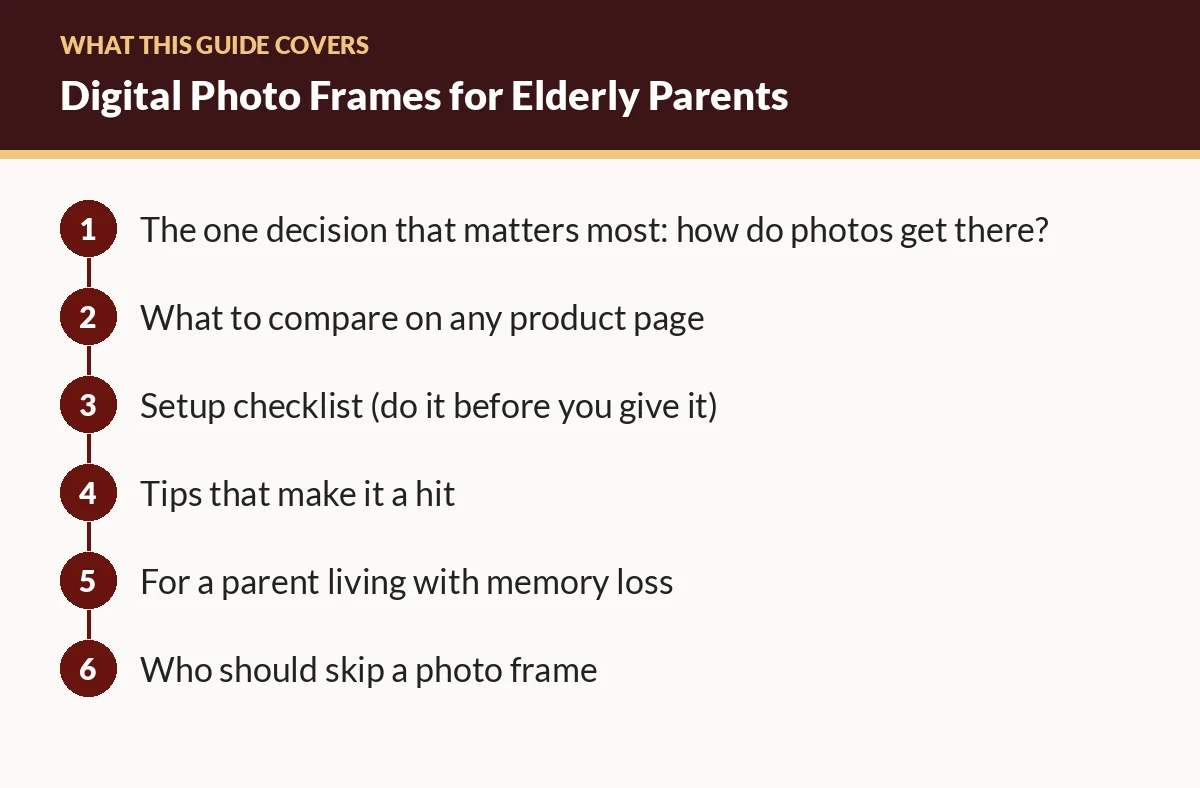
The one decision that matters most: how do photos get there?
| Method | How it works | Good for | Watch out for |
|---|---|---|---|
| Wi-Fi + app or email | Family sends photos from their phones; they appear on the frame | Families spread out; parent who won't touch it | Needs reliable Wi-Fi; account setup |
| Cellular-connected frame | Built-in data connection | Homes without Wi-Fi | Usually involves a plan or fee; check coverage |
| USB stick / memory card | You load photos and plug them in | No internet; privacy-minded | Updates only when someone visits |
Wi-Fi frames → Amazon · USB/SD frames → Amazon
What to compare on any product page
- How family adds photos: app, email address, web upload, or USB. How many people can be invited?
- Fees: is there a subscription? What works without one?
- Screen size and resolution: bigger is easier to see across a room.
- Orientation: does it handle portrait and landscape photos well?
- Controls: touchscreen, physical buttons, or app-only? For someone with limited dexterity, a frame that needs no touching is ideal.
- Auto on/off and brightness: a schedule or light sensor stops it from glowing all night.
- Video and sound: nice to have; make sure it can be muted.
- Storage: how many photos, and what happens when it's full.
- Privacy: who can send photos, and can the owner approve or delete them?
Setup checklist (do it before you give it)
- Unbox at your home first. Plug it in and update the firmware.
- Create the account and invite family members. Test that each person can send a photo.
- Pre-load 50-100 photos so it's full of memories on day one. Include old family pictures you've scanned.
- Set a sleep schedule (for example, off at bedtime, on in the morning).
- Turn off anything confusing, like on-screen notifications or menus that pop up.
- Write down the Wi-Fi details for their home and bring them. Or ask a neighbor or relative there to help connect it.
- At their home: place it where they sit most and at eye level, away from glare.
- Show them one thing only, such as how to pause on a photo, if anything at all.
- Set expectations with family: a few photos a week keeps it fresh. A burst of 300 at once does not.
Tips that make it a hit
- Caption photos if the frame supports it, so names and places show.
- Mix old and new: wedding photos, childhood pictures, and this week's soccer game.
- Create a family "photo day" where everyone sends one picture.
- Check in after a week to make sure it stayed connected.
For a parent living with memory loss
Familiar photos can be a comfort, but be thoughtful. Some people may find certain images upsetting. Caregivers are the best judges; see our dementia gift guide, which draws on the Alzheimer's Association's activity guidance.
Who should skip a photo frame
If your parent already looks at photos on a tablet every day, a frame may be redundant. Instead, set up a shared album on the tablet. And if no one will keep sending photos, the frame turns into a slideshow of last year.
FAQ
Do digital photo frames need Wi-Fi?
Many do, so family can send photos remotely. Some load photos from a USB stick or memory card instead. Check the product page before buying for a home without Wi-Fi.
Can family members add photos from far away?
Many Wi-Fi frames let invited family members send photos through an app or email. Check how invitations work and whether there are subscription fees.
Is there a monthly fee?
Some frames have optional or required subscriptions for features like cloud storage or video. Read the product page carefully.
Related guides
- Best Tech Gifts for Elderly Parents: A Decision Guide
- Video-Call Setup Guide for Grandparents
- Gifts for Seniors with Dementia: Ideas Based on Caregiver Guidance